Levels
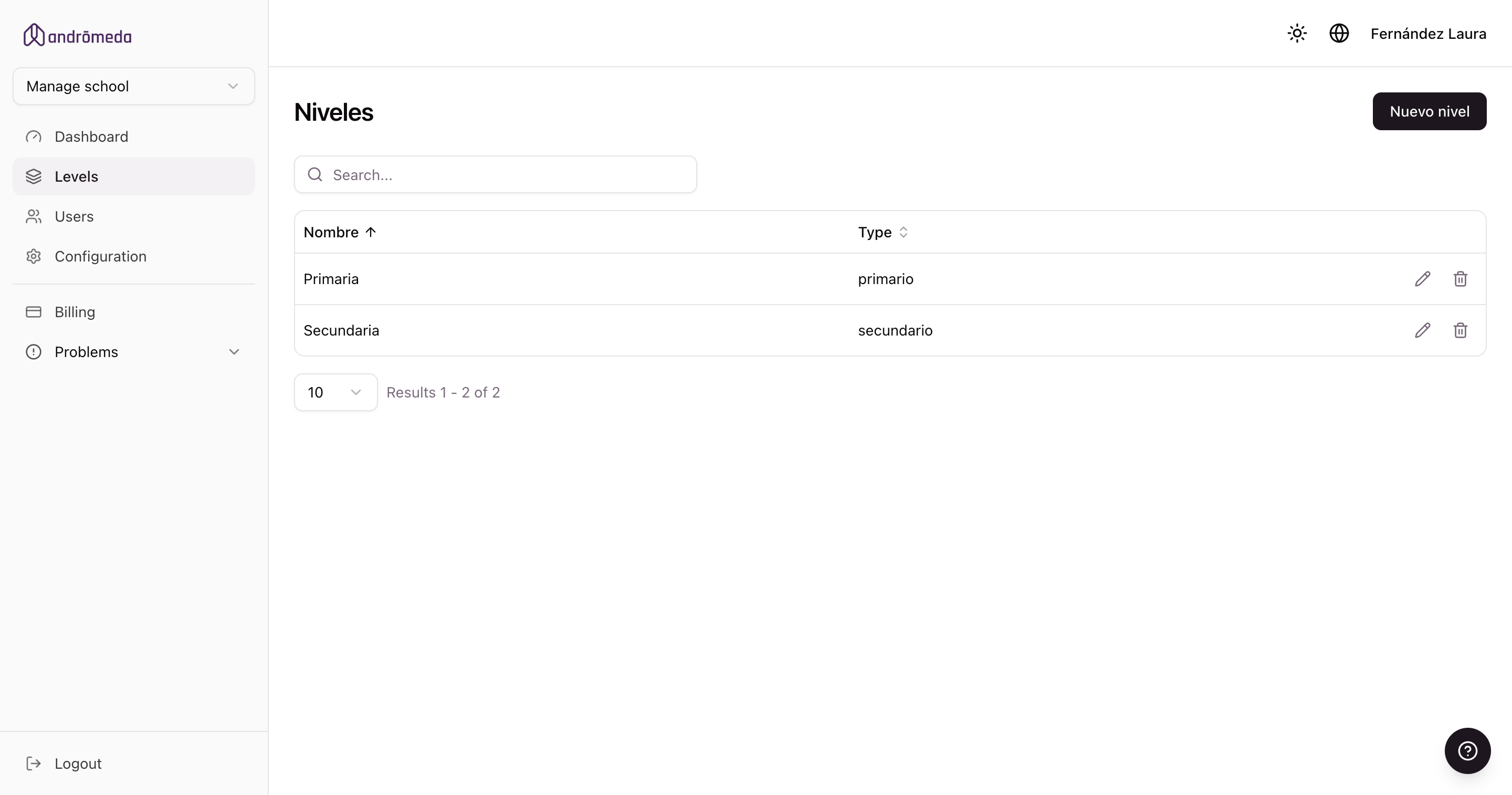
Levels are your school's main divisions: Early Years, Primary, Secondary, or whatever your institution calls them. You manage them under Levels, inside Manage school mode.
Each level is a separate world
This is the most important idea on this screen. A level has its own groups, teachers, students, guardians, messages, report cards and content. Nothing is shared with another level.
That means:
- A message sent from Primary doesn't reach anyone in Secondary.
- A group belongs to exactly one level.
- To work in a level you have to be standing in it, using the selector at the top left.
The ones your school actually runs separately. If Early Years and Primary share an office and communicate together, one level may be enough. Splitting too far means repeating work.
Creating a level
New level opens a short form:
| Field | What it's for |
|---|---|
| Name | What the level is called. It's what you see in the selector. |
| Type | Early years, primary, secondary or generic. |
| Colour | A colour to tell it apart at a glance. |
Why the type matters
The type isn't just a label: it changes what the level offers.
A level of type early years enables the early-years report card, which is filled in with descriptive reports instead of numeric marks, plus its own configuration screen. The other types use the report card with grades.
If you picked the wrong type when creating the level, you can fix it by editing it. Best to do so before you start loading report cards.
As soon as you create it
The new level appears in the selector straight away, without signing in again. Pick it and you're working inside.
It will be empty: no groups, no teachers, no students. The next step is to create the groups.
Editing a level
Use the pencil on each row. Changing the name or colour doesn't affect anything loaded inside.
Deleting a level
A level isn't an empty folder: inside it are its groups, students, messages and report cards. Only delete one if you're sure, and never just to "make room".
If the level you delete is the one you were working in, the panel returns you to Manage school mode.
If what you want is to stop using a level but keep its history, it's better to leave it alone and simply not work in it.
Who can manage each level
Levels are created by the school administrator. After that, from Panel users, you decide who manages which.
A school administrator can enter every level of their school without being assigned to it. A level administrator only enters the ones assigned to them.
