Message tracking
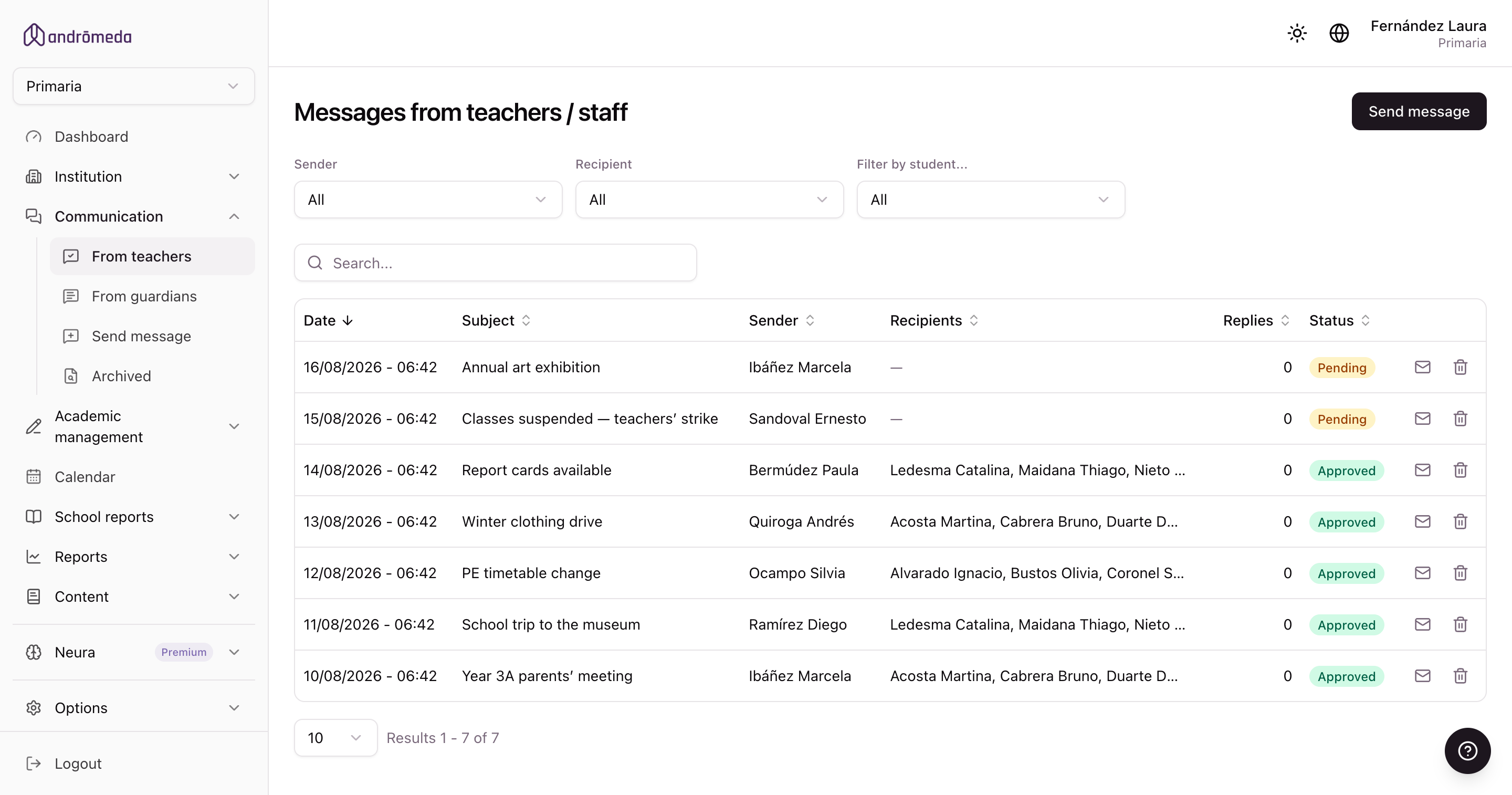
Under Communication there are three lists showing what has circulated in the level, according to who wrote it:
| List | What it shows |
|---|---|
| Teacher and staff messages | What the school team sent to families. This is where pending ones are approved. |
| Guardian messages | What families wrote from the app. |
| Student messages | What students wrote from their own accounts. |
All three work the same way.
Approving messages
This is the most important function in this section.
By default, what a teacher writes to families waits for approval. The status column tells you where each one stands.
While it's in that state, families haven't received it. If a teacher tells you they sent something and the family never saw it, this is the first thing to check.
The side menu shows a counter next to "Teacher and staff messages" with the number pending, so you can see it at a glance without going in.
A message approved late is, in practice, a message that wasn't sent. If the wait becomes a problem, you can authorise trusted teachers to have theirs go straight out: that's set on their record, under Teachers and staff.
A message's record
The envelope button on each row opens the record, which shows:
- Who it was sent to, by name.
- How many received it: it reached their phone.
- How many read it: they opened it.
- How many confirmed it: they tapped the confirmation button, if the message asked for one.
That gap is the most valuable information in the panel: there's usually a distance between "I sent it" and "they read it", and here you see exactly how big.
Replies
If the message got replies, a second button appears to read the whole conversation.
The button is only there if there were any: no button means nobody answered.
The filters
Above each list there are three filters —sender, recipient and student— and they combine with each other. You can ask for, say, everything one teacher wrote to one particular student's family.
The filters are stored in the page address, so you can reload it, or send the link to someone, without losing the search.
The teachers and staff list also has a status filter, to see only the messages pending approval or only the approved ones.
Messages flagged by artificial intelligence
At schools that have it enabled, the platform reads every new message and flags the ones worth a look because of their tone.
They appear on the Summary, alongside those awaiting approval, and open right there without leaving the screen.
In these lists they also carry an amber warning icon next to the subject. Hover over it to see why: tension or complaint, concern about a student, or negative tone.
It doesn't block anything or replace your judgement: it just raises a hand.
→ Neura and artificial intelligence
Messages from previous years
Old messages are stored separately so the day-to-day list doesn't get slow. They have their own search screen.
