Sending a message
This is the most-used screen in the panel. From Send a message you send a communication that arrives in the families' app, with a notification on their phone.
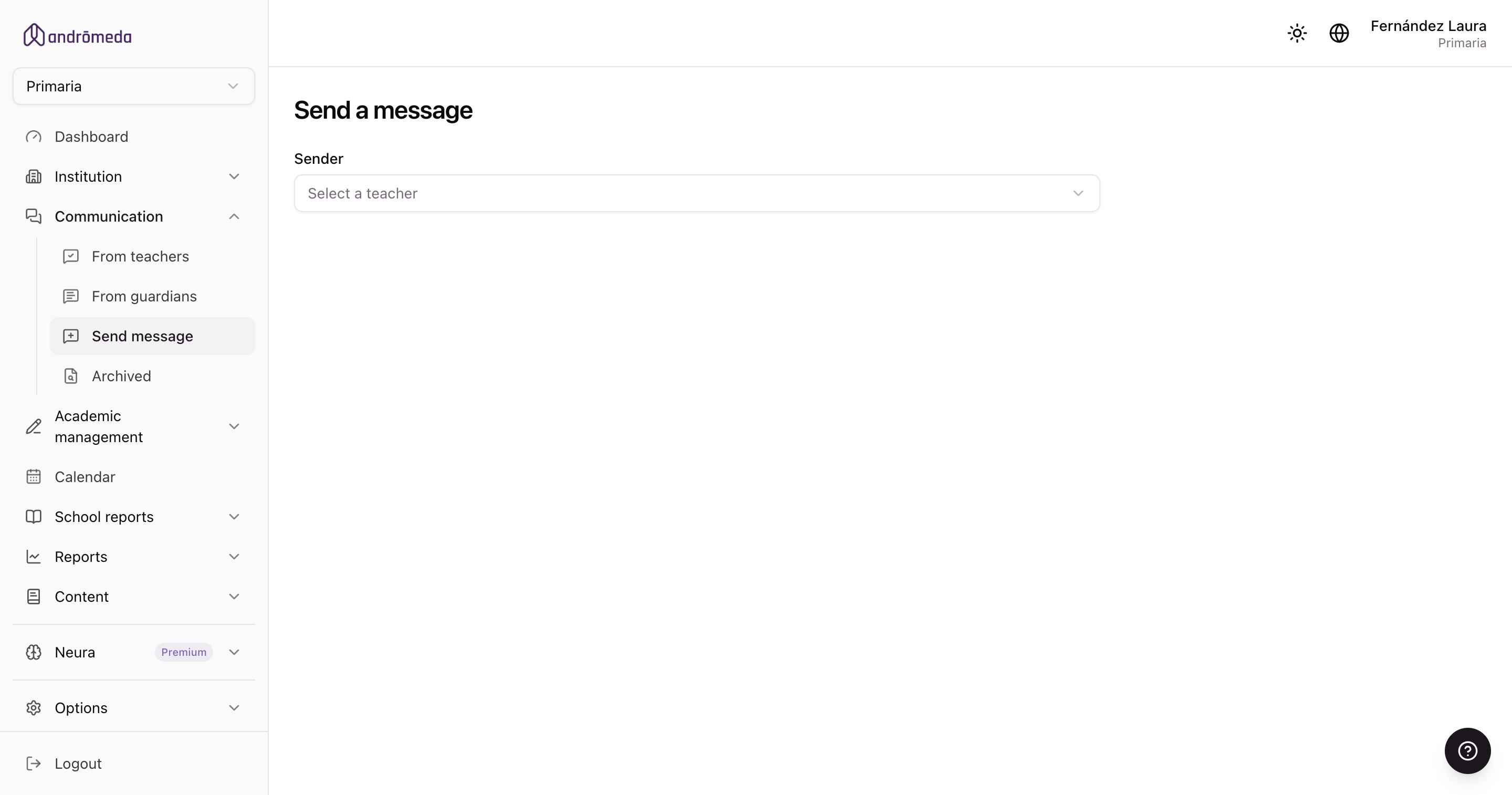
The steps
Choose who it's sent on behalf of
Messages go out signed by someone. The list contains the teachers of this level's groups.
Choose the recipients
There are three ways, and they're mutually exclusive: choosing in one clears the other two.
| Option | When to use it |
|---|---|
| Groups | The usual choice: it reaches every family in those classes. |
| Teachers | For internal team communications. |
| Students | For specific cases: a few students from different groups. |
Write the message
A title and a body. You can use a template so you don't rewrite the same thing each time.
Set the options
Whether it requires confirmation, and whether the group's other teachers see it too.
Attach anything needed
You can add files: a PDF circular, a permission slip, a photo.
Send
It goes out immediately. Families get the notification on their phone.
The two options worth understanding
Requires confirmation
If you tick this, families get a button to confirm they've read it, and you can see exactly who did and who didn't.
It's enormously useful for permission slips, trips and important notices. But if you tick it on every message, people get used to tapping the button without reading and it stops meaning anything.
Let the group's other teachers see it
This option appears when you choose groups. It keeps the rest of the teaching team informed about what was communicated, without having to forward it separately.
If the sender dropdown is empty
The screen may tell you there's nobody to choose as sender. There are two different causes, and the message tells you which:
There are no groups in the level
Teachers reach a level through groups. If the level has no groups, there are no teachers to offer.
Fix: create the first group. → Groups
There are groups but no teachers assigned
The groups exist but have no teachers in them. You can have teachers on file at the school and still see this screen empty, if none of them is in a group in this level.
Fix: edit a group and assign a teacher. → Teachers and staff
After sending
The message is recorded and you can track it: how many it reached, how many read it, how many confirmed, and whether anyone replied.
Tips that save trouble
Check the recipients before sending. A sent message can't be unsent: it has already buzzed in everyone's pocket.
One topic per message. Easier to read and, above all, easier to find later in the archive.
If it's urgent, don't rely on the app alone. Check the coverage report first: if some families haven't been in for months, that message doesn't exist for them.
