Students and guardians
These are two sides of the same thing: the student is the one attending, and the guardian is the person responsible for them —mother, father, grandmother, whoever— and the one who receives messages in the app.
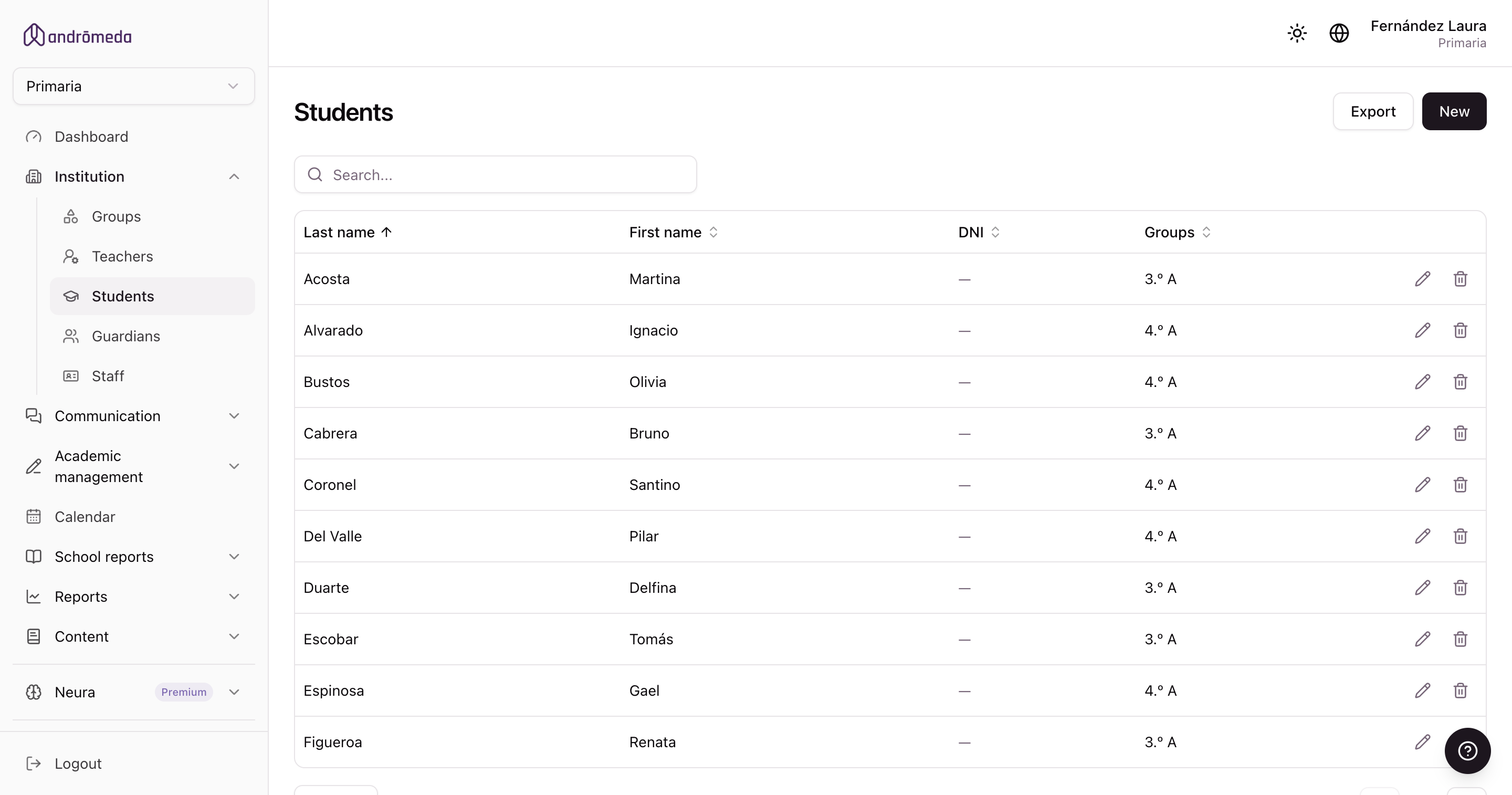
Students
The list shows every student in the level, with the groups they belong to and the guardians responsible for them.
Adding one
| Field | Notes |
|---|---|
| First name and surname | As it will appear in lists and report cards. |
| ID number | Used to search for them and to cross-check with administration. |
| Unique. Only needed if the student will have their own app account. | |
| Groups | Which ones they belong to. Can be more than one. |
| Guardians | Who's responsible for them. Can be more than one. |
When you add a student you pick their groups. If the groups don't exist yet, you'll have to reopen every student's record later.
Students with their own account
At some schools —especially secondary and adult courses— students sign in themselves, alongside their guardians. For that they need an email and password.
If your school doesn't work that way, leave the email blank: the student still exists and messages go to their family.
Guardians
They're the people responsible for students, and the real recipient of almost everything the school communicates.
A guardian belongs to a level through their students: they aren't assigned to a level directly. If a guardian doesn't appear, check they're linked to a student in that level.
Many-to-many relationships
- A student can have several guardians: mother and father, or whoever. They all receive what's sent.
- A guardian can have several students: siblings at the school, even across different levels.
In that last case the family has a single account and sees all their children from it. There's no need to add them twice.
Resending the password
This is the most common request. From a guardian's record you can resend their password to anyone who can't get in, without them having to do anything.
Inactive guardians
If a guardian shows as inactive, they haven't opened the app in a long time, and probably aren't receiving notifications.
You could be sending perfect messages that nobody reads. Before assuming communication works, check the coverage report.
The most common problem: students without guardians
A student with no guardian on file is a student whose family receives nothing.
In Manage school mode there's an Issues section with a Students without guardians list, precisely to catch them.
That's when they show up: new students added in a hurry, or families whose responsible adult changed. Five minutes there saves complaints later.
Exporting
Both lists download to Excel with the Export button. From a group's record you can also export just that group's guardians, which is the practical way to build a class contact list.
Confirming that communication lands
Adding students and guardians properly isn't enough: you have to confirm families are actually getting into the app.
That's what the coverage report is for, cross-referencing the two.
→ Reports
